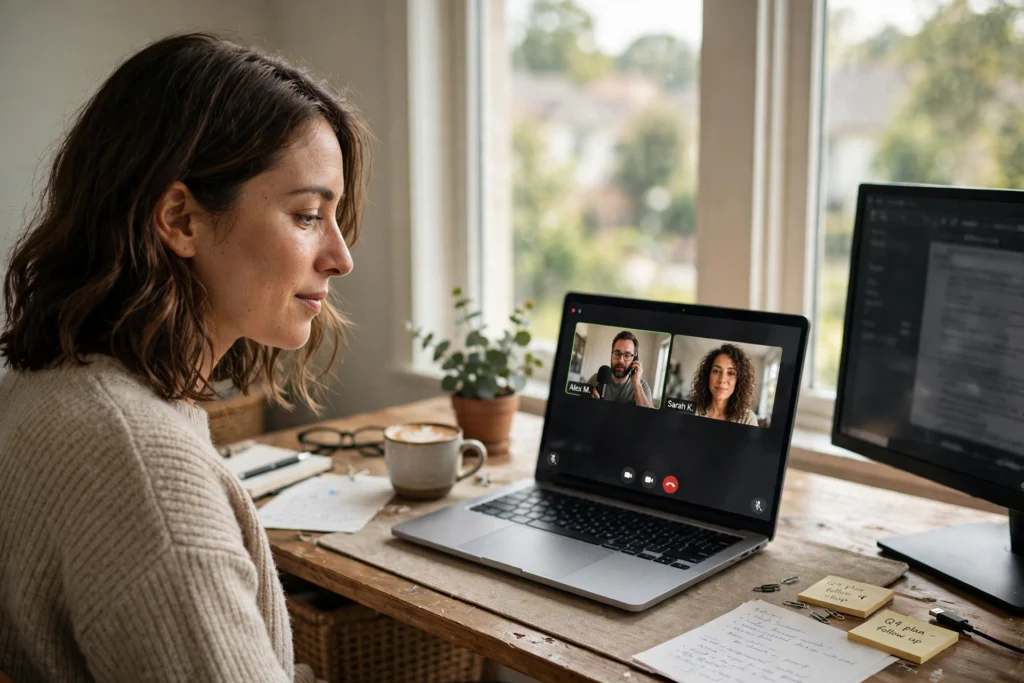
How to Light Yourself Well for Video Calls
By Maya Bennett, Founder & Editor. Good video call lighting is not about an expensive studio. It is about putting a soft light in front of your face, keeping harsh light out of the picture, and testing the result before the meeting starts. These seven steps fix the most common problems, from dark rooms to bright windows, and they keep the focus on lighting you, not on the background behind you. For more ideas in this series, browse the Home Office Ideas category.
As an Amazon Associate I earn from qualifying purchases. Please see our affiliate disclosure for details. This article prints no prices, because prices change. Check the listing before you buy, and confirm you have the exact variant named.
In this article
At a glance
| Step | What it does |
|---|---|
| 1. Face the window first | Uses free daylight as the best light you already own |
| 2. Add one key light at eye level | Puts a soft, even light on your face for every call |
| 3. Let a light bar do the desk work | Lights the desk without glare and without desk space |
| 4. Upgrade the webcam before the background | Gives a sharper picture that makes good light count |
| 5. Use a ring light only when the room is dark | Adds even light in a dark room, and stays off in a bright one |
| 6. Soften the room behind you | Balances the background so your face stays the brightest part |
| 7. Test the call before the real one | Catches lighting problems while there is still time to fix them |
1. Face the window first
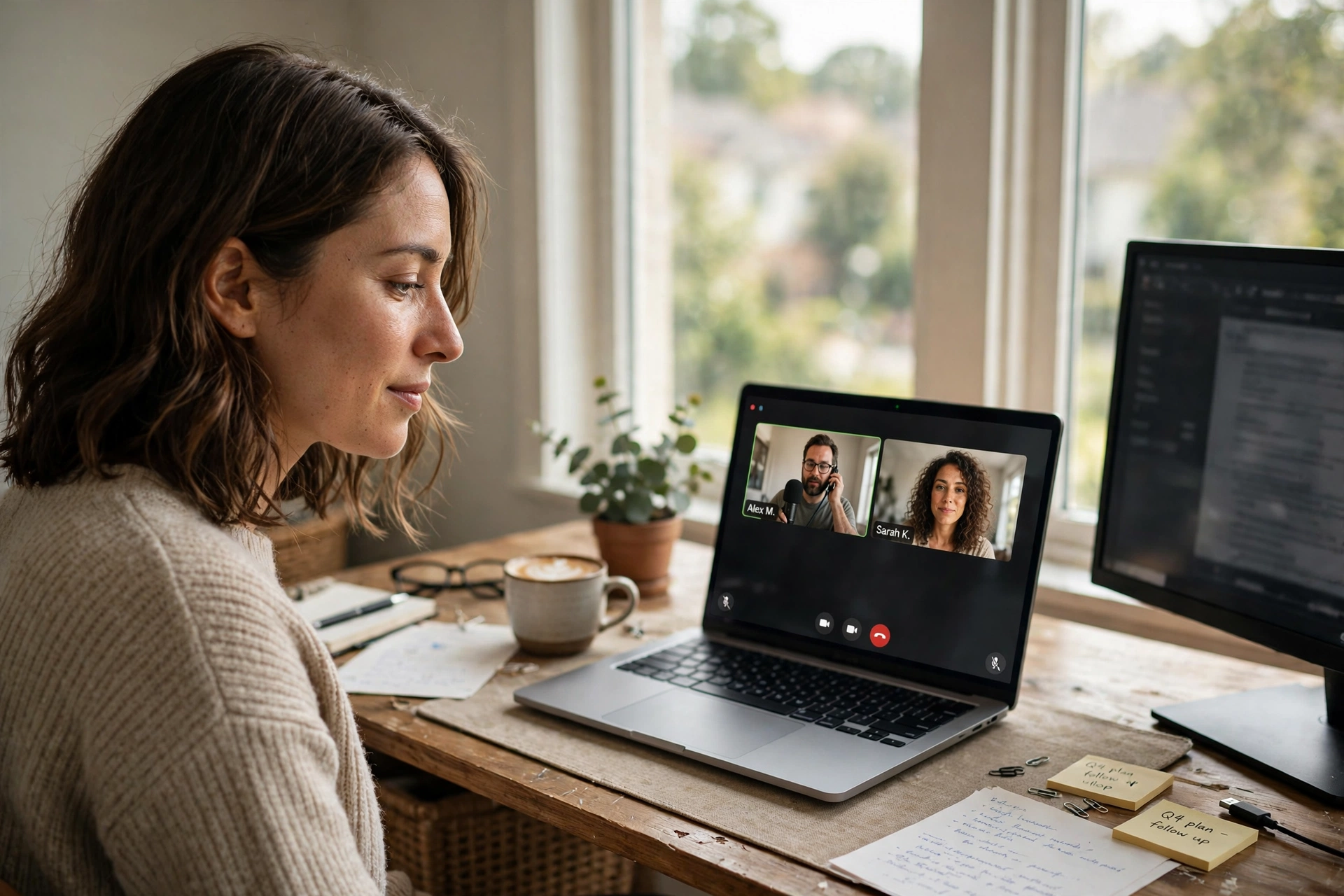
Daylight is the cheapest and kindest light for video calls, and it costs nothing. Sit facing the window, with the light falling on your face, and your camera will thank you. The screen stays readable, your face stays bright, and nobody has to squint at a dark silhouette. This one change fixes more calls than any gadget you can buy.
Avoid sitting with the window behind you, because the camera sees a bright rectangle and a dark face. If the window is to your side, turn the desk a little so the light falls across your face instead of from one side only. A sheer curtain softens harsh midday sun without turning the room dark.
- Face the window so daylight falls on your face
- Never sit with a bright window directly behind you
- Use a sheer curtain to soften harsh midday sun
AI-generated image
2. Add one key light at eye level
When daylight is not enough, one key light does the job. Place the panel in front of you, a little above eye level and slightly to one side, so the light wraps around your face instead of blasting straight into your eyes. Set it to a warm white in the evening and a cooler white in the day, and keep the brightness just high enough that your face looks clear without glowing.
A desk clamp mount keeps the panel off the desk and out of the camera frame. Start at half brightness and raise it slowly while you watch your own preview, because the right level is usually lower than you expect. One good light beats three cheap ones fighting each other.
AI-generated image
Why this one: It is bright enough to beat a dim room, the clamp keeps it off the desk, and the app lets you tune brightness and warmth in seconds.
Worth knowing: Every change runs through the app, so there is no dimmer on the panel itself, and it needs mains power, with no battery option.
3. Let a light bar do the desk work
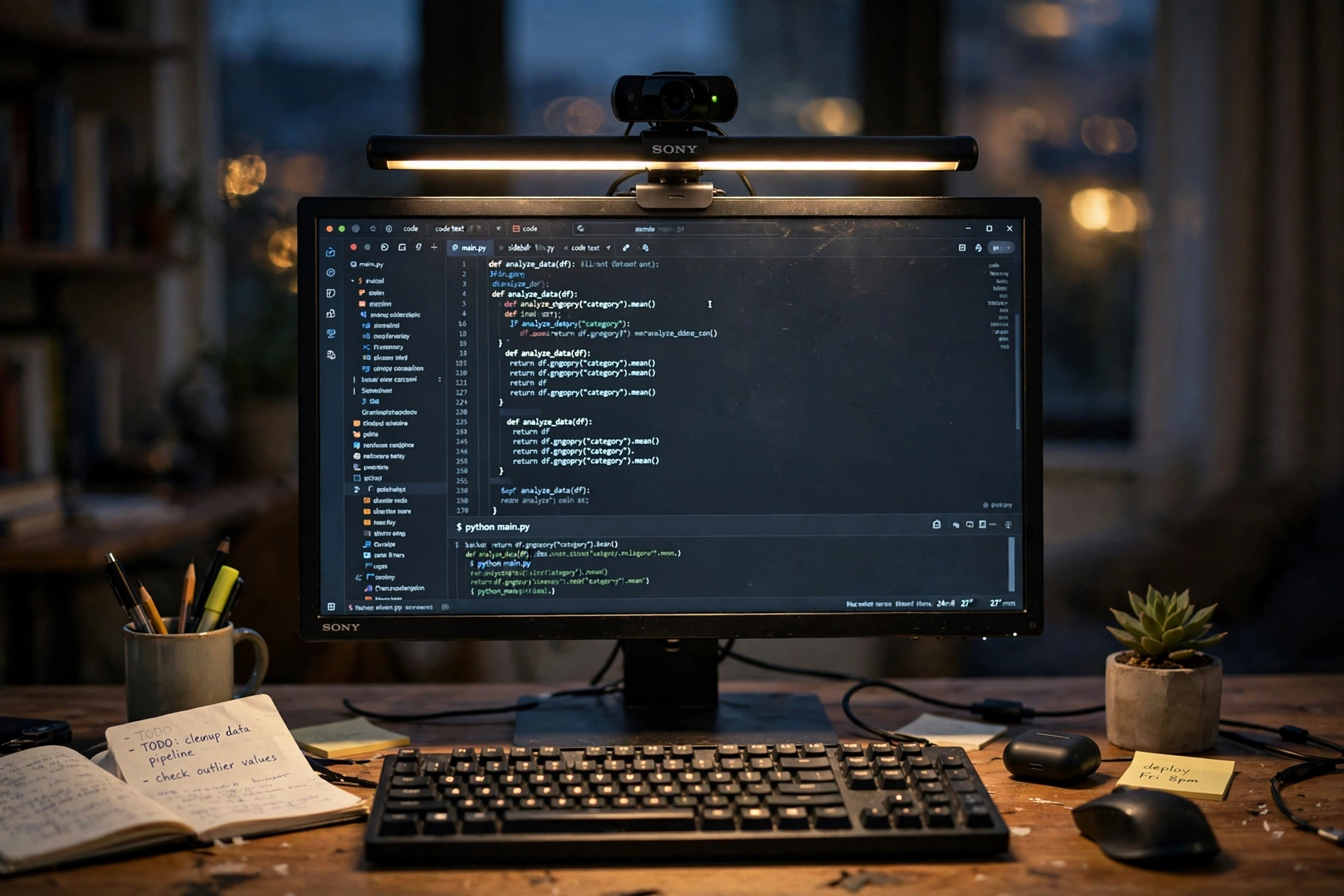
A monitor light bar sits on top of your screen and throws light down onto the desk, which is exactly where you need it for notes and a keyboard. It takes no desk space, it never shines into the camera, and it keeps the screen free of glare. For a small desk, it is often the tidiest lighting upgrade you can make.
Pick a bar with a dimmer and a color range, and set it so the desk looks bright while your face stays lit by the window or the key light. The bar is for the desk, not for your face, so do not expect it to replace the key light. Together, the two lights cover the whole scene.
- Clip the bar to the top of the monitor and plug it into USB power
- Set the brightness so the keyboard is clear without glare on the screen
- Match the color to your key light so the scene looks natural
AI-generated image
Why this one: It sits on the monitor, lights the desk without glare on the screen, and the remote makes small brightness changes easy mid-call.
Worth knowing: The remote runs on batteries you will need to replace, and the bar can crowd a webcam that also sits on top of the monitor.
4. Upgrade the webcam before the background
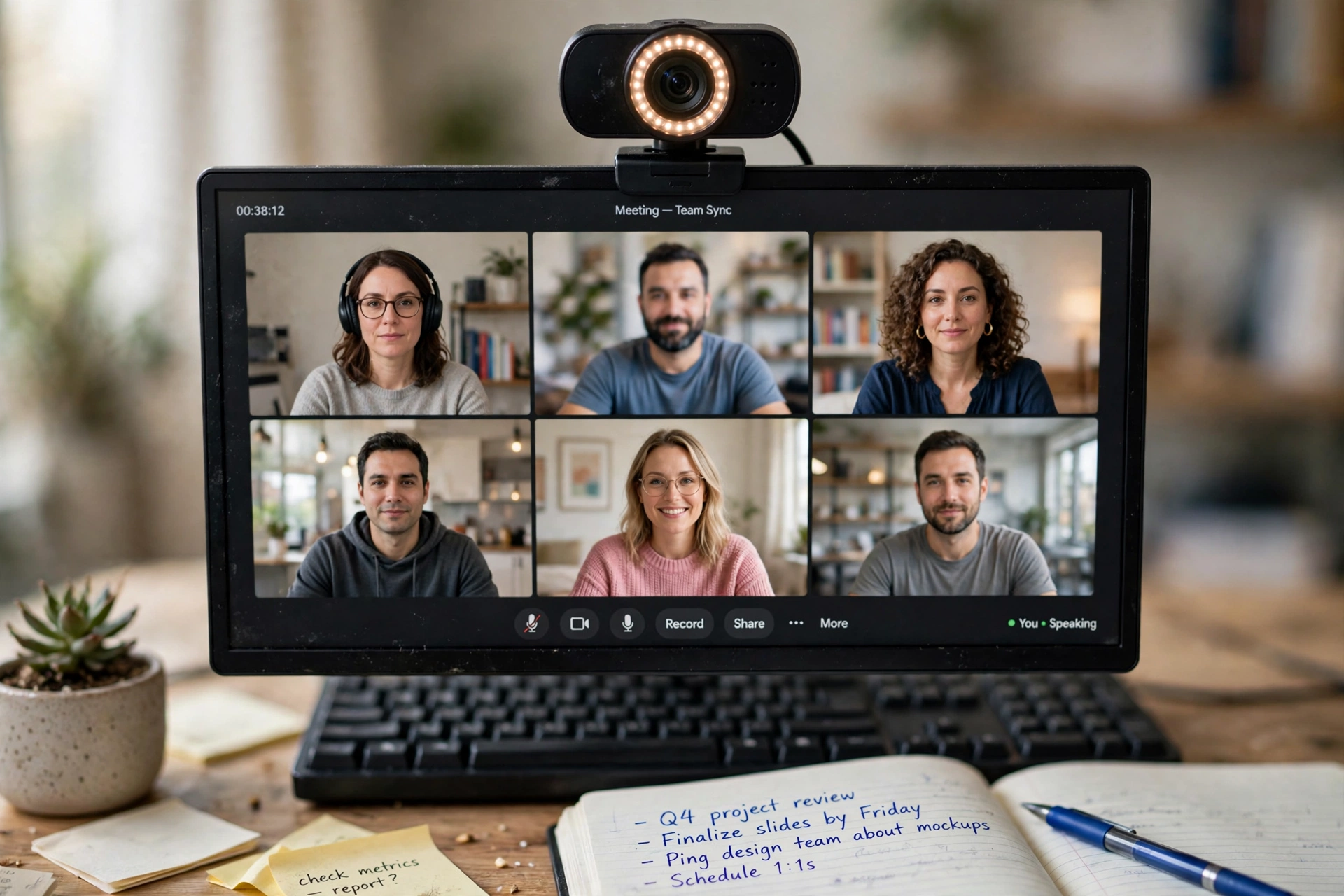
Good light only helps if the camera can see it, and most built-in laptop cameras are small, grainy, and badly placed. A dedicated webcam sits at eye level, captures a sharper picture, and corrects for dim rooms far better than a laptop camera. It is a bigger upgrade than a new background, because people watch your face, not your wall.
Mount the webcam at eye level on top of the monitor, and sit a little back so your head and shoulders fill the frame without looming. Check the preview before every important call, and wipe the lens now and then, because a dusty lens turns good light into a soft haze.
AI-generated image
Why this one: It gives a sharper, steadier picture than most built-in laptop cameras, and the light correction helps in rooms that are not perfectly lit.
Worth knowing: It records at 1080p only, with no 4K option, and it has no privacy shutter, so cover it or unplug it when you are done.
5. Use a ring light only when the room is dark
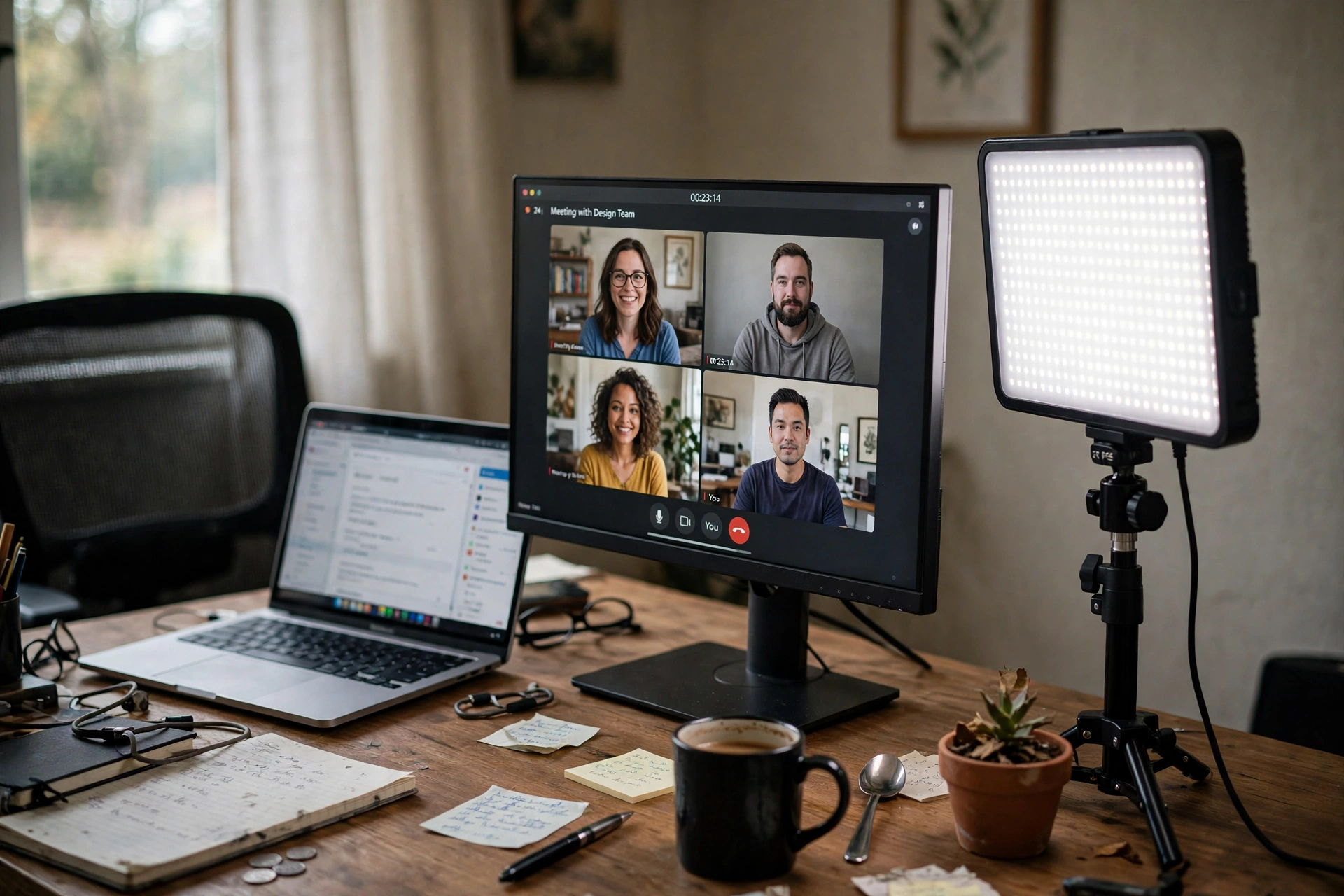
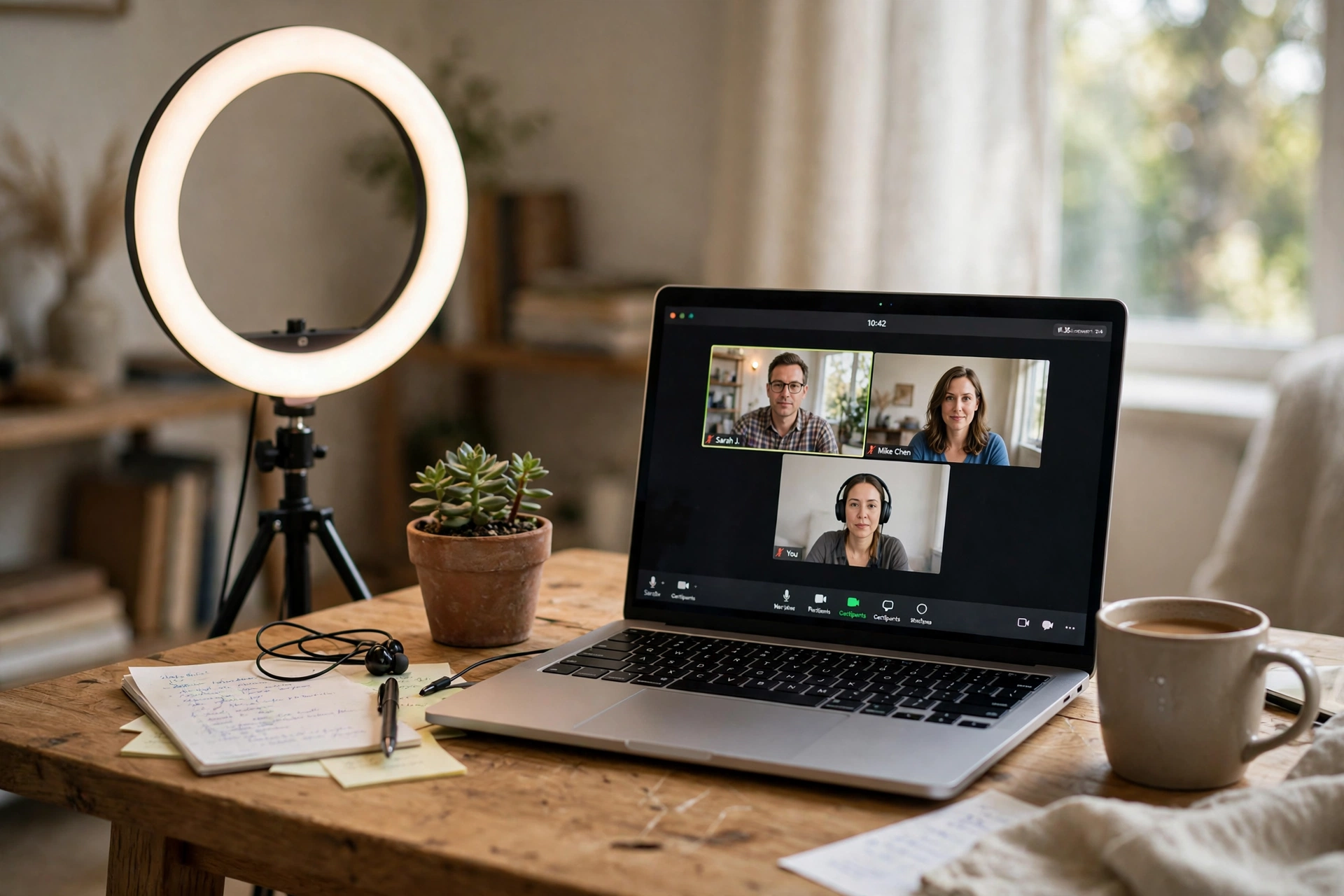
A ring light wraps your face in even light, which is why it looks so flattering on camera. It earns its place when your room is dark, when you call at night, or when the window light is weak. Put it behind the camera, close to the lens, and keep it dim enough that your eyes do not water.
In a bright room, switch it off. A ring light fighting daylight creates two shadows and a strange glint in your glasses, and it adds nothing the window is not already doing. Think of it as a backup light for dark hours, not a light you leave on all day.
- Best for night calls and dark rooms
- Place it behind the camera, close to the lens
- Keep it dim, and switch it off in bright daylight
AI-generated image
6. Soften the room behind you
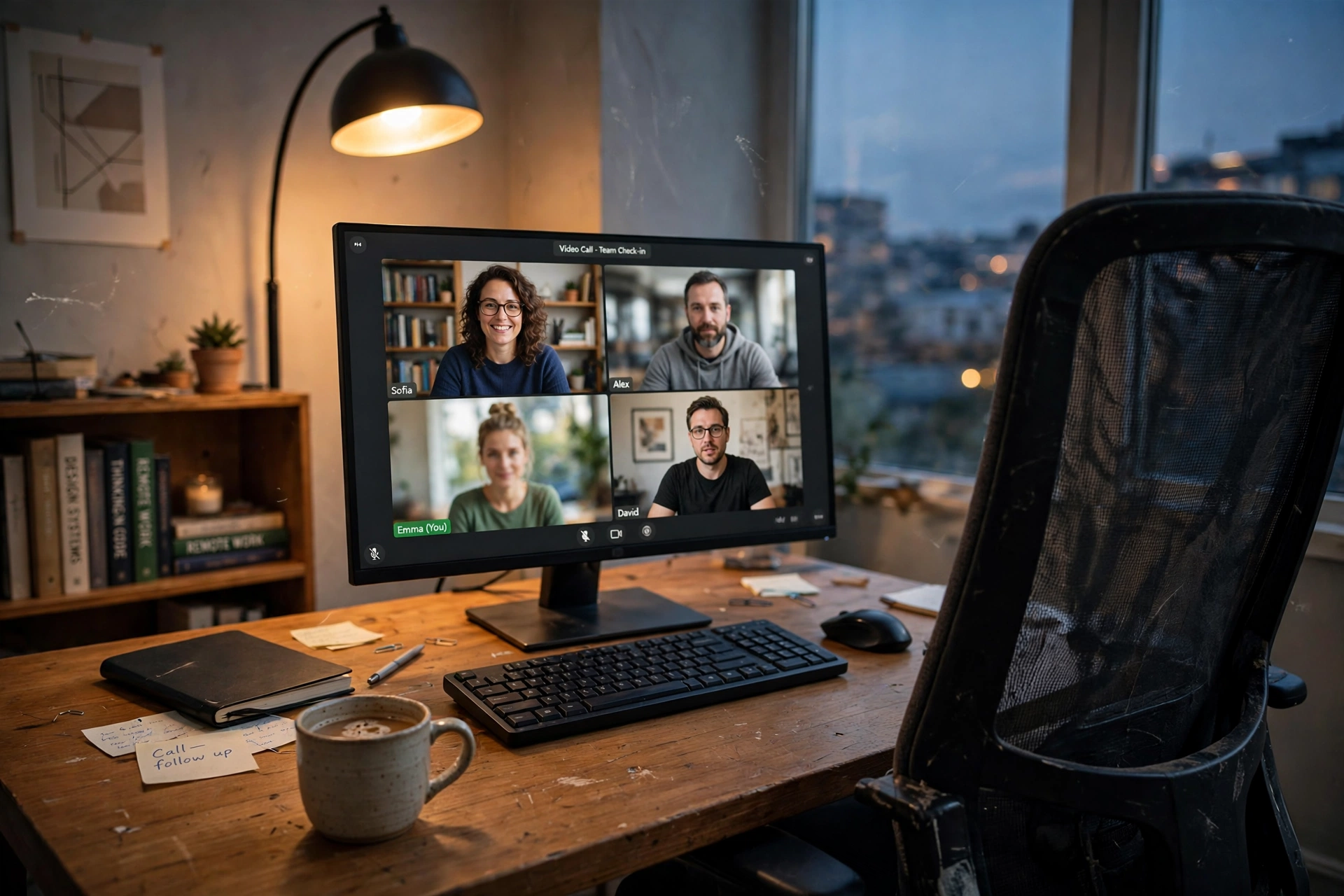
The camera adjusts to the brightest thing it sees, so a dark room behind you makes your face look darker too. A soft floor lamp behind the desk warms the background and balances the scene, so the camera exposes your face correctly. It does not need to be bright. A gentle glow is enough to stop the background from turning into a black hole.
Place the lamp to one side, out of the camera frame, and choose a warm bulb that matches the rest of the room. Avoid a bare bulb in shot, because it will pull the exposure and leave you in shadow. This step is about balance, not decoration.
AI-generated image
Why this one: The rotating head aims soft light where you need it, the dimmer sets the mood for calls, and it doubles as a reading lamp after work.
Worth knowing: It is a floor lamp, so it needs floor space beside the desk, and the antique brass finish suits some rooms better than others.
7. Test the call before the real one
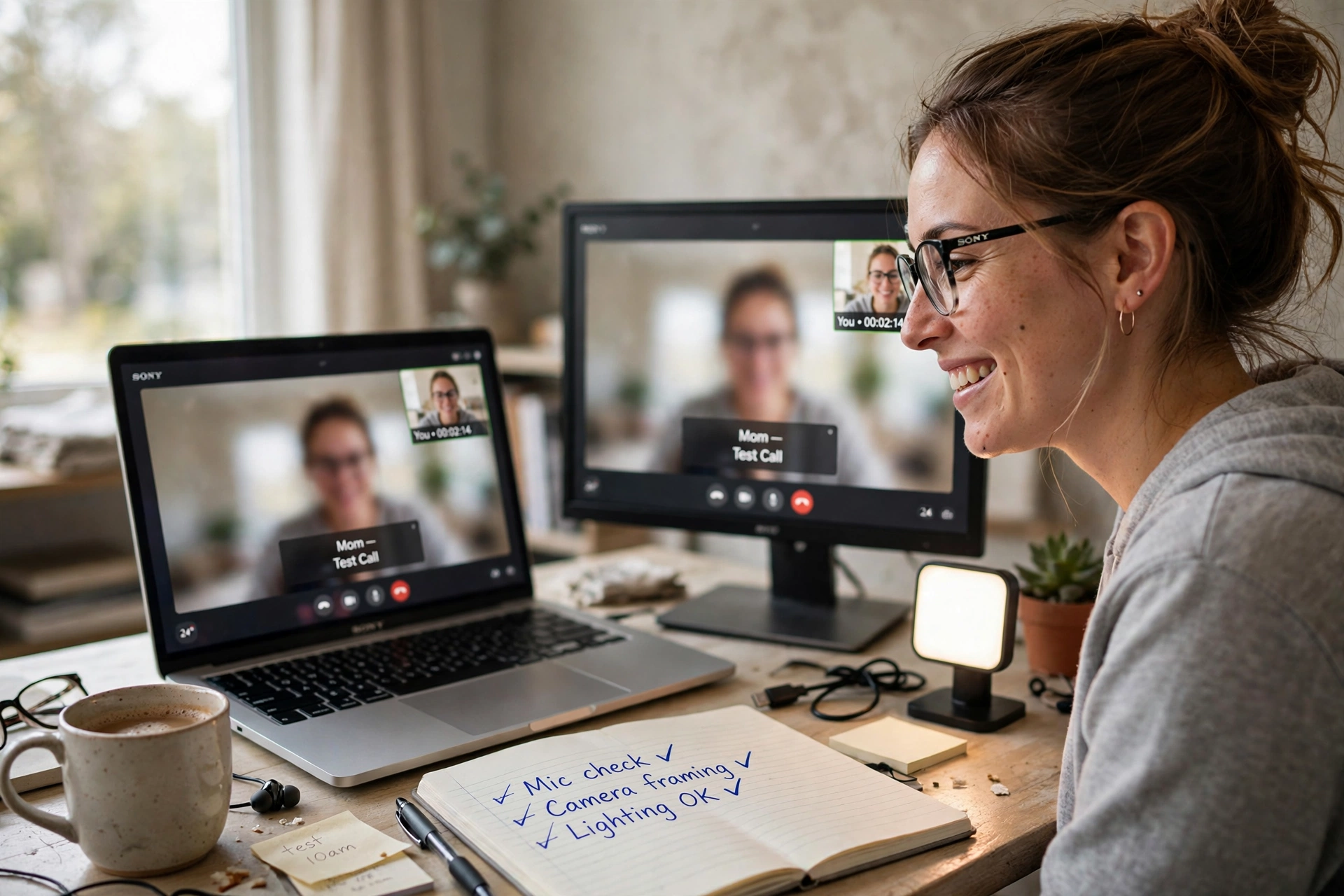
Every lighting setup looks right until you see it on camera, so test it before the meeting that matters. Open a test call or record a short clip, and watch it back as if you were the other person. Check your face is bright, the background is calm, and nothing glares or flickers. Fix what you see, then test again.
Run the test at the same hour as the real call, with the same lights on and the same curtains closed or open. Light changes through the day, and a test at noon tells you nothing about a call at four. Two minutes of testing saves a whole meeting of apologies.
- Open a test call or record a short clip at the real meeting hour
- Watch your face, the background, and any glare or flicker
- Adjust one light at a time, then test again before you join
AI-generated image
Frequently asked questions
Do I need a key light if I sit by a window?
Not always. If your calls happen in daylight and you face the window, daylight alone can be enough. A key light earns its place for evening calls, cloudy days, and rooms where the window light is weak or one sided.
Why do I look dark on video even in a bright room?
The camera is probably exposing for a bright window or a bright wall behind you. Move the bright object out of frame, face the light, and add a soft light in front of you, so the camera exposes your face instead of the background.
Should the light be warm or cool?
Match the room. Cool white suits daylight hours, warm white suits evening calls, and a mix of both looks odd on camera. Pick one temperature for the key light and the desk light, and keep it steady.
Where should I put the light if I wear glasses?
Put the key light a little higher and further to the side, so the reflection misses the lenses. A light bar on the monitor rarely glares in glasses, because it points down at the desk, not at your face.
Is a ring light better than a key light?
A ring light is softer and simpler, while a key light is brighter and more adjustable. For daily work calls, a key light usually wins. For short calls in a dark room, a ring light is fine and takes less space.
Conclusion
Light yourself well by facing the window, adding one key light at eye level, letting a light bar handle the desk, and testing the result before the call. The background can stay plain. When your face is bright and even, people listen to what you say instead of squinting at the screen. For more ideas, browse the Home Office Ideas category.
