
How to Set Up Dual Monitors in a Small Home Office
Two screens can fit a small desk, but only if you plan the layout before you buy or move anything. The trick is to lift the screens off the desk, angle them to your chair, and route the cables so they stay out of your way. This guide takes you through the setup step by step, in a small space. Browse more room ideas in the Home Office Ideas collection on desk and glow.
As an Amazon Associate I earn from qualifying purchases. Read our affiliate disclosure for details.
In this guide
1. Measure the desk
2. Pick the layout
3. Mount the screens
4. Set height and angle
5. Route the cables
6. Place keyboard and chair
7. Test a full workday
FAQ
Conclusion
At a glance
| Step | What it does |
|---|---|
| 1. Measure the desk | Checks that two screens will actually fit |
| 2. Pick the layout | Chooses side by side or stacked for the room |
| 3. Mount the screens | Lifts the screens off the desk surface |
| 4. Set height and angle | Lines the screens up with your eyes |
| 5. Route the cables | Keeps power and video cables tidy |
| 6. Place keyboard and chair | Centres you between the two screens |
| 7. Test a full workday | Finds small problems before they become habits |
Step 1. Measure the desk

Measure before you move a single screen. Write down the desk width, depth and thickness, and the width of each monitor including its frame. Two 24 inch screens side by side need about 44 inches of width once you count the frames and a small gap, so a 47 inch desk works and a 40 inch desk will feel tight. Check the desk thickness too, because a clamp mount needs a solid edge to grip. Also measure the space behind the desk for cables, and the distance from the chair to the wall, so you know how far back you can sit.
Step 2. Pick the layout
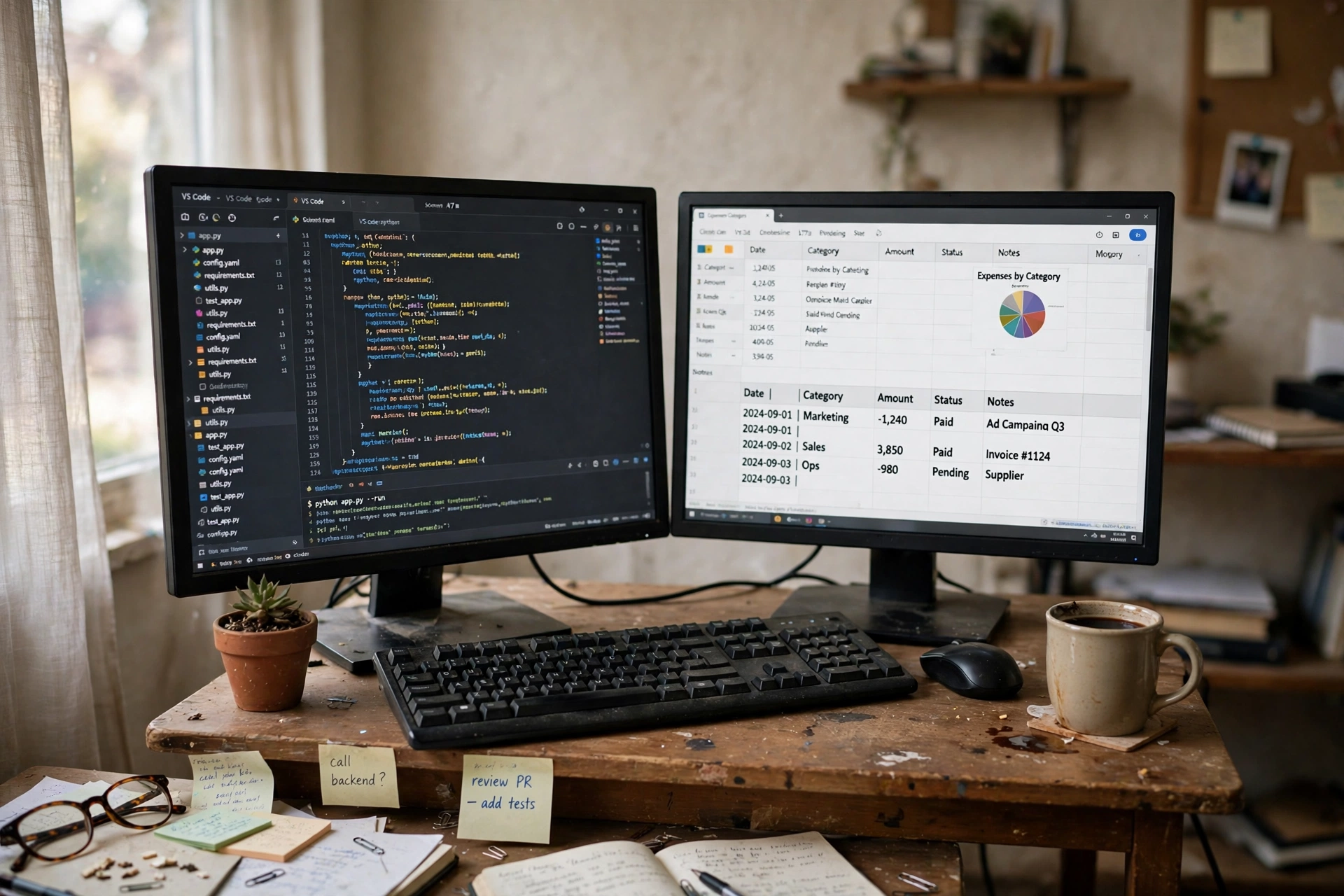
Side by side suits most people, because both screens sit at the same height and you turn your head a little to switch between them. Stacked suits a narrow desk, because one screen sits above the other and the width stays small, but the top screen is for glances, not for all day work. A laptop plus a monitor is a third choice, with the monitor as the main screen and the laptop off to one side for notes or chat. Pick the layout that fits your desk width first, then your work habits, not the other way round.
- Side by side: best for wide desks and equal work on both screens.
- Stacked: best for narrow desks, with the lower screen as the main one.
- Laptop plus monitor: best when one screen is already a laptop.
- Angled pair: best when the desk sits in a corner.
Step 3. Mount the screens
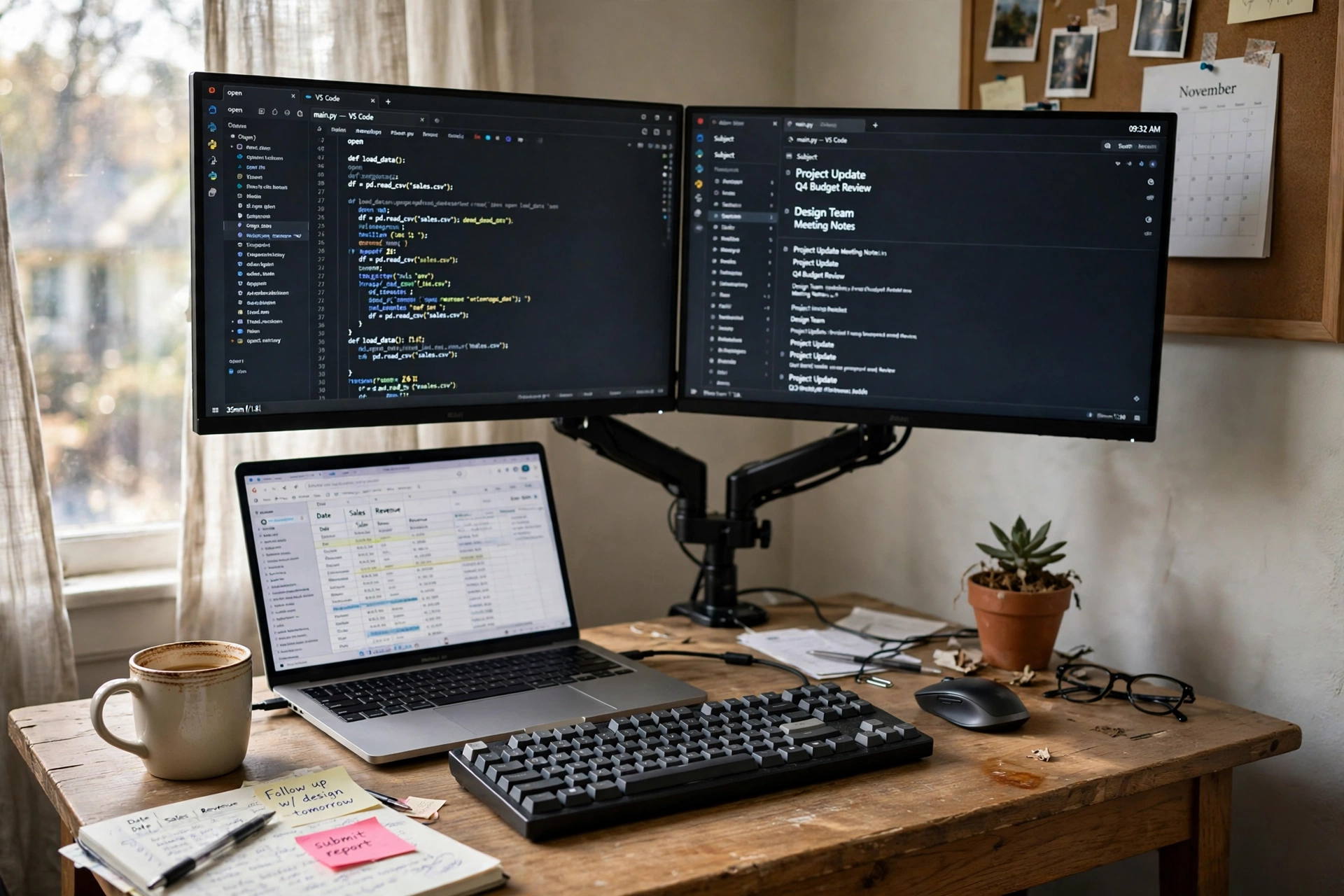
A dual arm mount frees the desk surface and lets you move both screens as one unit. Check that your monitors have VESA holes on the back and that the mount supports their size and weight, then follow this order:
- Clamp the mount to the back edge of the desk and tighten it firmly.
- Attach one monitor, check it holds, then attach the second.
- Set the screens level with each other before you plug anything in.
- Tighten the tilt screws just enough that the screens stay put.
If a clamp will not fit, a riser shelf is a simpler choice. It lifts both screens on their own stands and needs no holes in the desk, but it takes up more depth.
Our pick: Mount-It! Dual Arm Monitor Mount, Gas Spring, Fits 22 to 27 Inch Screens
Why this one: The gas spring arms move smoothly and hold two screens side by side on a clamp base, which suits a small desk.
Worth knowing: Check the VESA pattern and the weight of each monitor first, and confirm the clamp fits your desk thickness.
Step 4. Set height and angle

Set the top of each screen at about eye level, with a slight tilt back so the screen faces you squarely. Angle the two screens inward a little, like an open book, so the inner edges sit closer to you than the outer edges. The main screen, the one you look at most, should sit straight ahead, with the second screen just to its side. Sit in your chair, look at the centre of each screen, and check that you are not tilting your head up or down for long stretches. Small turns are fine, a constant twist is a sign the angle needs work.
Our pick: Amazon Basics 24 inch Full HD IPS Monitor, 75 Hz
Why this one: Two matching 24 inch screens keep the height and colour close, which makes the pair feel like one wide workspace.
Worth knowing: Two of these need about 44 inches of desk width side by side, so measure first.
Step 5. Route the cables
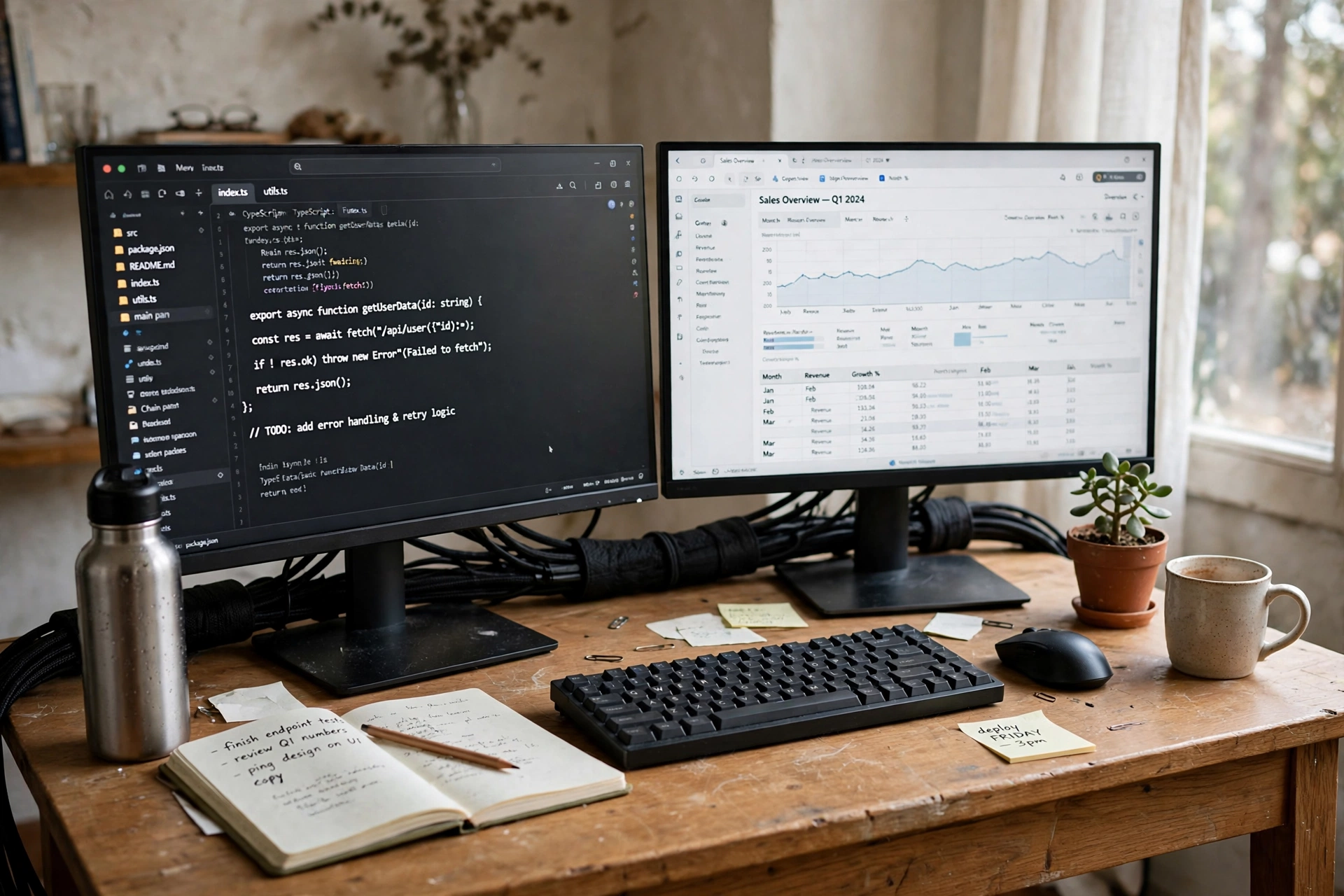
Two monitors mean twice the cables, so route them before they tangle. Group the power cables together and the video cables together, run them down the back of the mount arm, and leave a little slack so the screens can still move. A sleeve keeps the bundle neat and lets you add or remove a cable later without starting over. Keep the power strip where you can reach it, but off the desk surface, and check that no cable pulls tight when you tilt or swivel a screen.
Our pick: JOTO 4 Pack Cable Management Sleeve, 19 to 20 Inches, Black
Why this one: The zip up sleeves bundle power and video cables into one tidy run behind the screens.
Worth knowing: Each sleeve holds a limited number of cables, so use one sleeve per bundle rather than forcing them all in.
Step 6. Place keyboard and chair

With the screens set, place the keyboard in the middle of the two screens, or in front of the main screen if one screen does most of the work. Sit so your elbows rest near your sides and your wrists stay straight. Push the chair back until you can read both screens without leaning in, then check that your feet rest flat on the floor. In a small room, the chair needs room to roll back, so leave a clear space behind it and avoid parking a shelf or a box where the chair travels.
- Keyboard centred on the main screen, mouse close beside it.
- Chair height set so feet rest flat and knees sit at a right angle.
- Clear floor space behind the chair for rolling back.
- Notebook and phone off to one side, not between the screens.
Step 7. Test a full workday
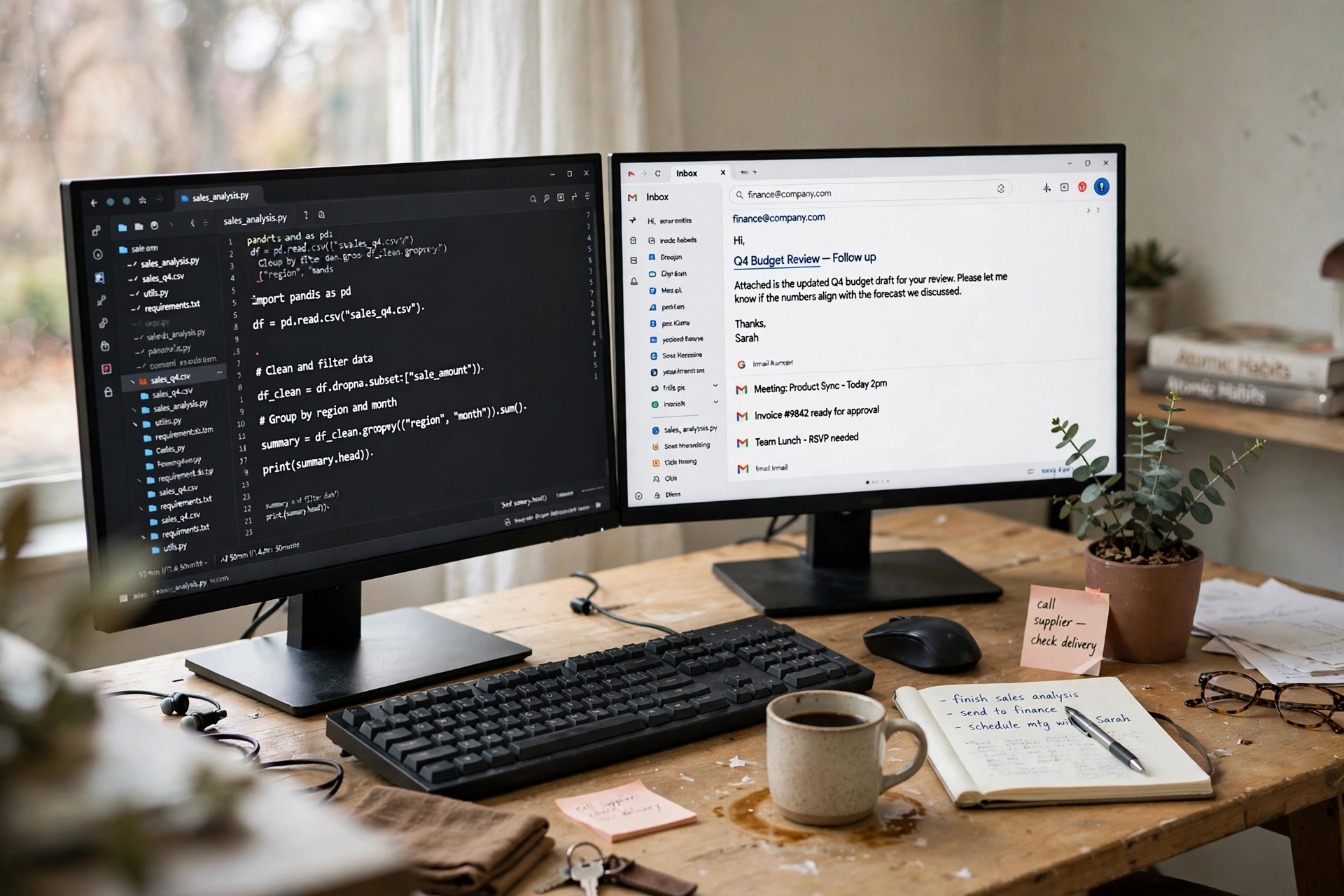
Use the setup for one full workday before you call it done. Notice which screen you look at most, whether you turn your head too far, and whether the second screen stays dark for hours. If it does, swap the roles of the screens or move the main work to the screen that sits straight ahead. Check the cables again at the end of the day, because a mount that felt firm in the morning can loosen after a day of small moves. One day of real use will tell you more than an hour of adjusting ever will.
Frequently asked questions
Can two monitors fit on a small desk?
Yes, if you measure first. Two 24 inch screens need about 44 inches side by side, and a dual arm mount frees the desk surface underneath them.
Should the screens be side by side or stacked?
Side by side suits wide desks and equal work on both screens. Stacked suits a narrow desk, with the lower screen as the main one.
Do both monitors need to match?
Matching screens look and feel better, because the height, size and colour stay close. A mixed pair still works if the heights line up.
How do I stop the cables tangling?
Group power and video cables separately, run them down the mount arm, and use a sleeve to hold each bundle, with slack left for movement.
What if my desk is too narrow?
Try a stacked mount, a laptop plus monitor layout, or two smaller screens. A riser shelf can also lift the screens without a clamp.
Conclusion
A dual monitor setup in a small office starts with measuring, then choosing a layout, mounting the screens, setting the height and angle, and routing the cables with slack to spare. Test it for a full workday and adjust once, and the small desk will feel like a much wider workspace. For more ideas to shape the rest of your workspace, browse the Home Office Ideas collection.
